Viewing stock levels and movements
- For
- Manager, Administrator
- Where
- Back office
- Permission
- Adjust stock
- Checked on
Each item's stock is read store by store: what is on hand, what is reserved, and what is left to sell. To understand where a number comes from, open the item: every sale, receipt, transfer or adjustment that moved it is listed there.
Before you start
- Your role needs the permission Adjust stock: it is the one that opens the Inventory screen.
- The screen reads the stock of one store at a time, so you have to choose one.
Stock is never a number you edit: it is the sum of the item's movements. A sale, a receipt or an adjustment adds a movement; nothing is erased. A mistake is fixed by a reverse movement (Adjusting stock).
Looking up an item in a store
To see the quantities of a store:
Open Stock > Inventory.
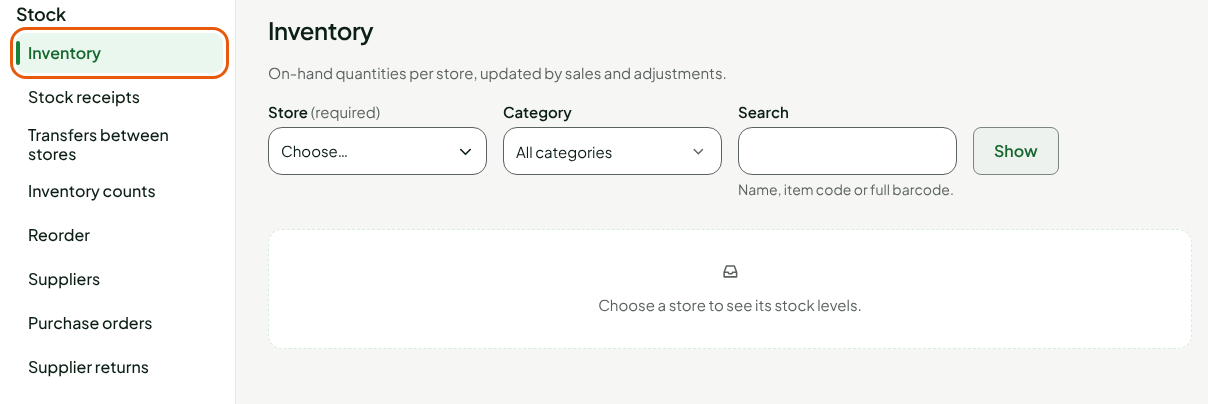
Choose the store in Store.

To see one family of items only, choose a Category. Otherwise leave All categories.
Type the item's name, its code or its full barcode in Search, then click Show.

The Stock levels of the store list shows one item per row.
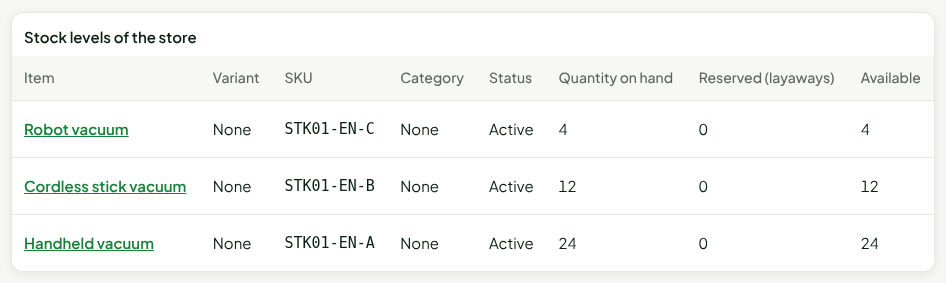
Reading the columns
| Column | What it says |
|---|---|
| Quantity on hand | What the store has, according to the sum of the movements. A number with a minus sign (−) means the item has been sold more than it was received or counted. |
| Reserved (layaways) | Goods promised to a customer: layaways, special orders received, web orders prepared. They are still on hand, but already taken. |
| Available | Quantity on hand minus Reserved (layaways): what is left to sell. |
| Status | Active or Inactive: the item's state in the catalog. The stock of an inactive item can still be read. |
A register always sells, even when the stock on hand is zero: an item sold without having been received or counted goes below zero. Stock is brought back up to date by a receipt or a count, or by an adjustment.
Looking at an item's movements
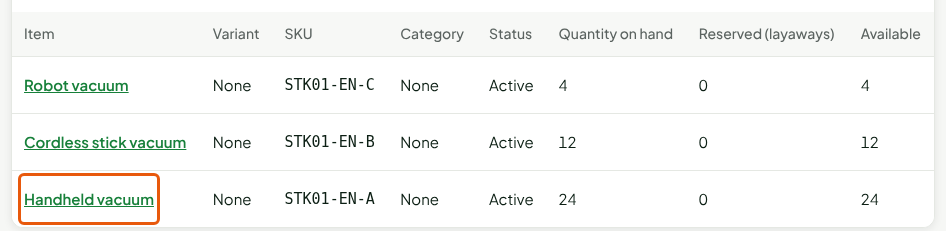
To find out why an item stands at 24:
Click the item's name in the list.
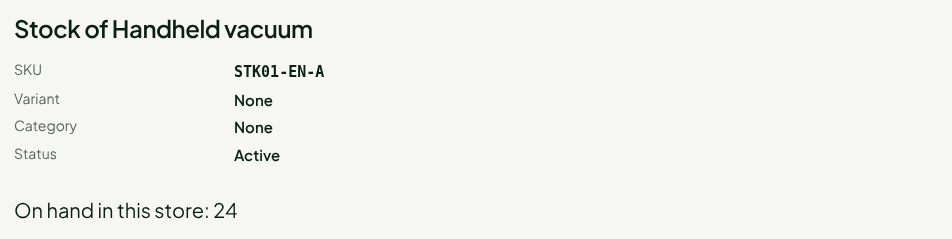
Read On hand in this store at the top of the page: the quantity of the chosen store. Further down, Level per store gives, for each store, the quantity on hand, reserved and available, with the date of its Last movement.
Read the rows under Latest movements, most recent first.
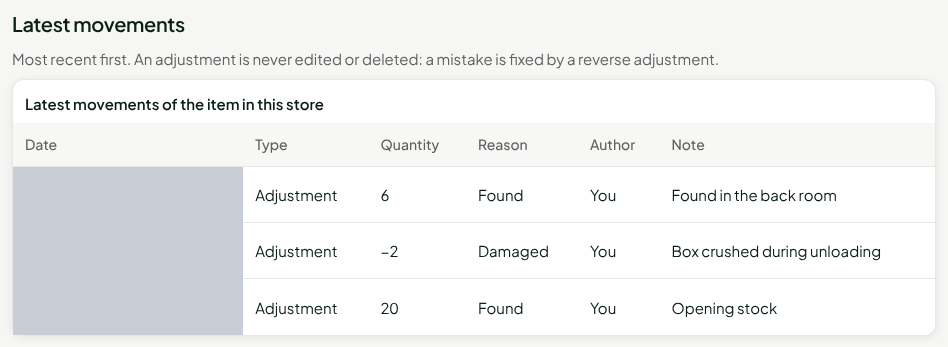
Each row gives the Date (in the store's time), the Type, the Quantity, the Reason, the Author and the Note. The quantity is positive when stock goes up, negative when it goes down.
The possible types are: Sale, Sale void, Adjustment, Receipt, Transfer sent, Transfer received, Count, Web order pickup, Return to supplier and Customer return. For an adjustment, the Reason and the Note are those of the person who made it. For a sale, the Author is Register.
Only the 50 most recent movements are shown. The screen says so under the table.
Troubleshooting
The screen asks for "Store identifier" instead of showing a list
Your role cannot read the list of stores. The screen tells you to ask an administrator for this identifier.
"No item matches these criteria in this store."
No item fits the chosen category and search. Click Clear filters, or search by the item's code.