Preparing a CSV file in Excel
- For
- Manager
- Where
- Back office
- Permission
- Manage the catalogue
- Checked on
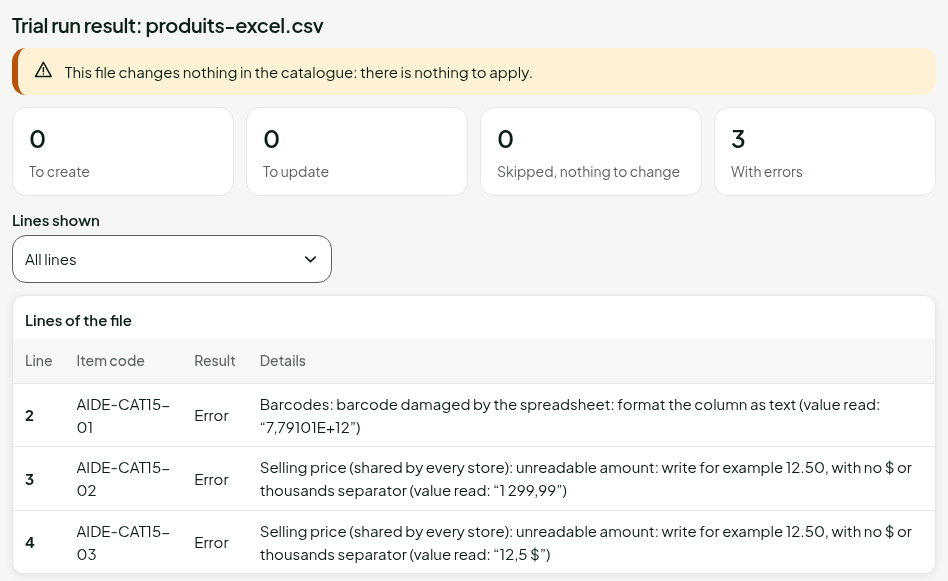
Excel opens and saves CSV files its own way: it changes the encoding, writes amounts with a $ and mangles long barcodes. The catalogue import refuses or misreads what it does not recognise. This guide says how to prepare the file so it goes through the first time. Excel's screens cannot be captured: the images show what the import answers.
Before you start
- Your role must have the Manage the catalogue permission.
- The safest way is to start from an exported file: see Exporting the product list. The column names of the first line (
sku,name,default_price…) are never changed.
Open a file without mangling it
A double-click on a CSV lets Excel guess the encoding, the separator and the type of each column. It guesses badly.
- Open the Data tab, in Excel, then choose the import of a text or CSV file.
- Choose the file origin UTF-8, and the separator semicolon.
- Choose the type Text for the
codescolumn.
A barcode is text, not a number. When Excel takes it for a number, it erases the leading zeros and writes long codes in scientific notation (7.79101E+12). For a column you fill in by hand, first apply the Text format to the cells, then type or paste the codes.
The trial run recognises a code mangled by Excel. A code such as 7,79101E+12 puts the line in Error, with the remark “barcode damaged by the spreadsheet: format the column as text”, and the import does not save the line. Format the codes column as text, retype the codes, then run the trial again.
Write the amounts
An amount is written 12.50 or 12,50. No $, no space, no thousands separator: 1299.99, never 1 299.99.
A cell in currency format is saved with its $: $29.99. Apply the Number format to the price columns, with two decimals and no thousands separator.
The amount is from 0 to 1,000,000.00. A line with an unreadable amount is refused, with the value read between quotes.
Save the file
- Choose File > Save As, in Excel.
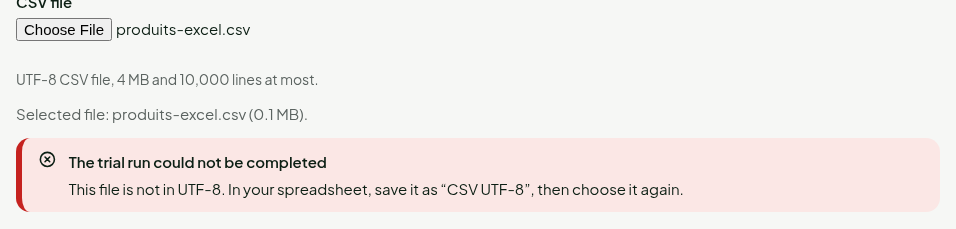
- Choose, in the list of file types, the one whose name starts with CSV UTF-8. The plain “CSV” type saves in the old Windows encoding, and accents are lost.
The separator is the one of your regional settings: the semicolon in French, the comma in English. The import accepts both.
If the file is not in UTF-8, the trial run says so and sends nothing.
Last checks
- One header line, no merged cells, and no empty line under the data: a filled line without an item code is refused, a completely empty line is ignored.
- An item code is not repeated in the file, and does not reuse that of another active product.
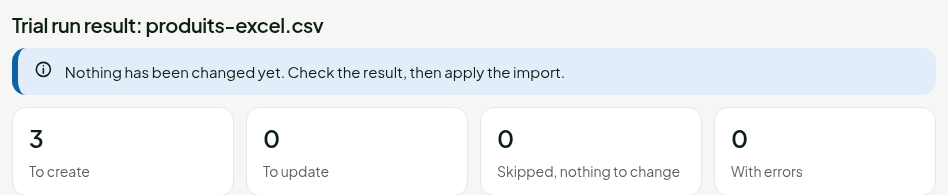
Then choose the file in Catalog > CSV import and export and start the trial run. With the corrected file, the three lines are To create and With errors stays at zero.
Troubleshooting
The file opens in a single column
Excel expected another separator. Use the text or CSV file import of the Data tab and choose the semicolon.
The accents became strange signs
The file was read or saved in an encoding other than UTF-8. Open it with the import of the Data tab, choosing UTF-8, and save it as “CSV UTF-8”.
“This file cannot be read”
The first line has no sku column, has the same column twice, or a quote is never closed. See Importing products from a CSV file.