Signing in to the register with your PIN and switching employees
- For
- Cashier, Manager
- Where
- Installed register, Web register
- Permission
- Sell at the register
- Checked on
At the register, everyone opens their own session with their PIN. Every sale, every return and every drawer opening is written under the name of the session's employee: it is always known who did what. When one person takes over from another, they switch employee by typing their PIN.
Before you start
- The PIN is 6 to 12 digits. It is set in the back office, on the employee's record, by an administrator or by a person whose role manages employee records and register PINs. It is never chosen at the register.
- An employee who has no PIN appears in the list with the mention "no PIN, to be set in the back office" and cannot open a session.
- The PIN is never shown on the screen. Tell it to no one and do not lend it: everything done under your session is in your name.
Open your session and switch employees
To open a session:
Tap your name under Who is taking the station?

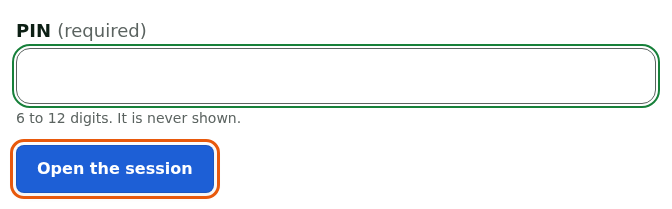
Type your PIN in PIN.
Tap Open the session.
The screen shows your name followed by session. It offers Sell, Register: opening, movements, closing, Lock, Switch employee, Close my session, Manager menu and Punch in or out. If you picked the wrong name, Choose another name goes back to the list.
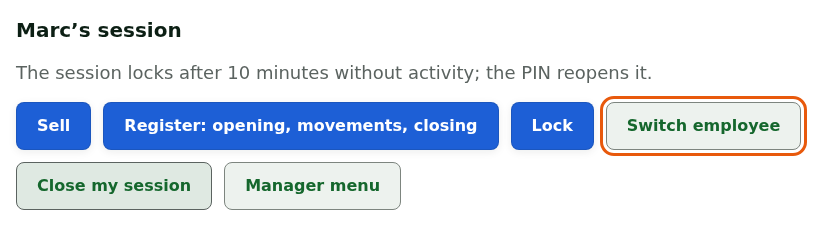
To switch employee:
Tap Switch employee. The current session locks right away.
Tap the new employee's name, type their PIN, then tap Open the session.

The previous employee's session is closed, and the new employee's session opens. Manager menu is reserved for managers: the screen says so when the session does not have that role.
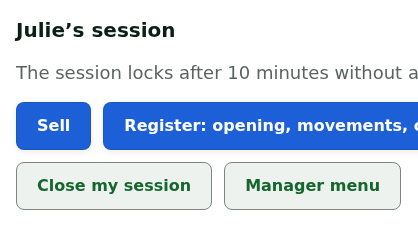
To leave the register without leaving a session open, tap Close my session: the screen shows Session closed.
When the employee has no PIN, the screen says so: "Léa: no PIN yet. Ask a manager to set it in the back office."

The installed register opens sessions without a network: it sells and switches employees offline.
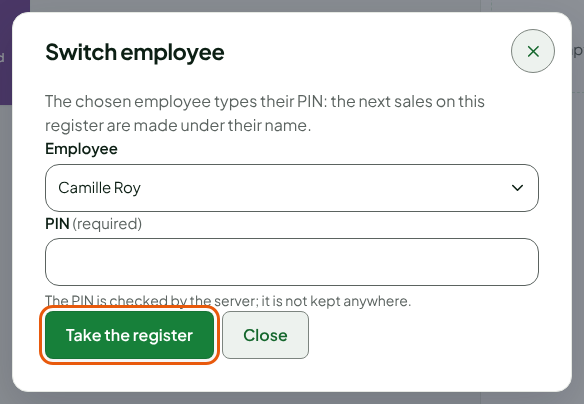
On the web register, the register session opens under the name of the person signed in to the back office. The PIN is only used to switch employee: the chosen person takes the register and the next sales are in their name.
To switch employee:
Open Sell, then click More actions… above the cart.
Click Switch employee. The entry names the current employee: Employee: followed by their name.
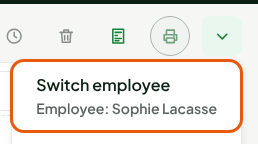
Choose the employee in Employee.
Type their PIN in PIN.
Click Take the register.
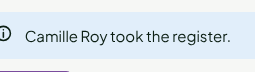
A message confirms: the employee's name followed by took the register.
The switch is only possible with an empty cart: clear the cart or put the sale on hold first. Only the store's employees who have a PIN and the right to sell are in the list.
:::
Troubleshooting
"Wrong PIN"
On the installed register, the screen gives the number of tries left before the PIN is blocked on this station. After that, the PIN is blocked and a manager unblocks it: Handling a locked session or a station to register again. On the web register, after too many tries, the employee tries again 15 minutes later, or has their PIN cleared in the back office by a person who manages register PINs.
"Session locked"
A session locks after 10 minutes without activity, or when you tap Lock. Tap your name and type your PIN: the same session resumes. If another employee types their PIN instead, yours closes and theirs opens.
An employee is missing from the list, or their PIN was just set
Tap Refresh the list: the register re-reads the employees from the server. A PIN set or replaced in the back office reaches the station this way.