
Viewing billing and paying an invoice
- For
- Administrator
- Where
- Back office
- Permission
- View software billing
- Checked on
The Billing page shows what Braavu POS costs you, how you pay for it and all your invoices. There you change plans, save a card, choose who receives the invoices and give your tax numbers. You can pay an invoice there at any time, even when an overdue invoice has made the back office read-only or has disabled the register.
Before you start
- Only the administrator has this permission at first. To give it to another role, check View software billing in Team > Roles.
- A negotiated price, a cancellation or a new subscription goes through support: the page does not do them.
- Each change is sent to the payment provider in the background: the page shows its status (waiting, done or failed) and updates by itself.
Reading your plan
Open Settings > Billing. The Plan tab opens.

Read the Subscription section:
- Status: Up to date, Pending, Overdue or Ended. When overdue, the sentence under the status says since when, and what happens if the invoice stays unpaid;
- Payment method: Automatic charge to the card on file or Invoice sent by email;
- Card on file: its brand, its last 4 digits and its expiry date, never its number;
- Next renewal: the date of the next plan invoice;
- Commitment: the term agreed at signing, if there is one.
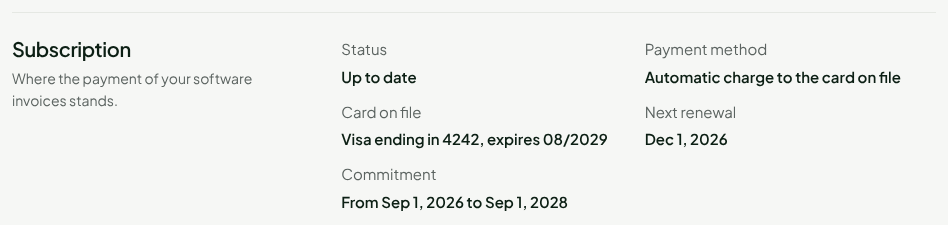
Read the Amount for the month (or Amount for the year): the price of your active stores and extra registers, before taxes, based on what is active today.

Further down, Terms gives the plan prices and Active stores counts the registers of each store. A price change already planned shows in a Starting box, with its date.
Viewing your invoices
Click the Invoices tab.
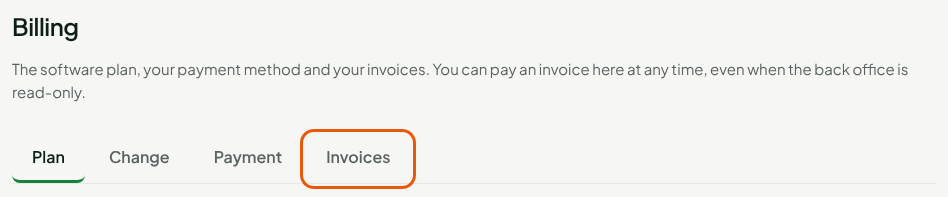
Read the list, most recent invoice at the top: its Number, its Date, its Amount including taxes and its Status: Paid, To pay, Overdue or Void. Under the date of an emailed invoice still due, the screen shows its due date.
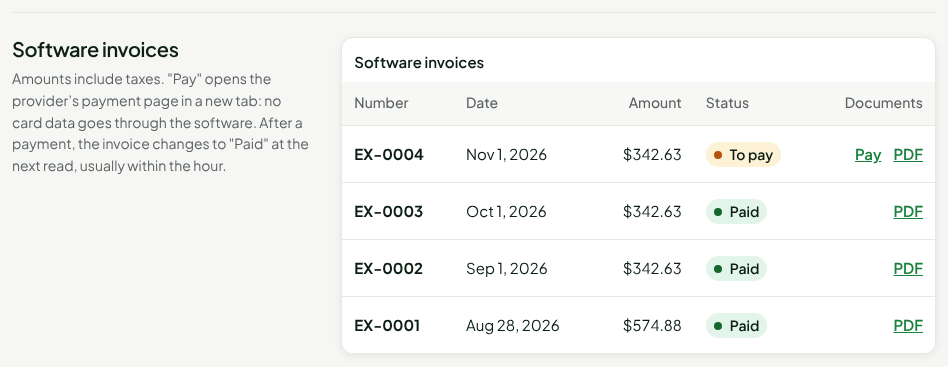
Click PDF to open the invoice document in a new tab, to print or keep it.
Paying an invoice
Find the invoice that is To pay or Overdue in the Invoices tab.
Click Pay. The provider's payment page opens in a new tab: you pay there by card. No card data goes through Braavu POS.
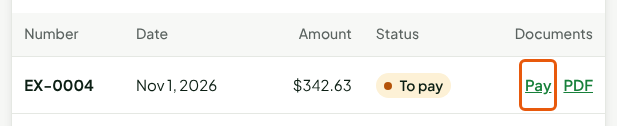
After the payment, the invoice changes to Paid at the next read, usually within the hour. If it was the only overdue invoice, the late-payment notice then disappears from every page, and the back office and the register work as before.
Pay only shows on an invoice that is To pay or Overdue. With automatic charge, the card on file pays each invoice on its own: Pay settles it right away, for example with another card after a decline.
Changing plan or billing frequency
Click the Change tab. Each plan on offer shows monthly and yearly, with its prices and the amount for the period for your active stores and registers, before taxes. Your current plan is marked Your current plan.
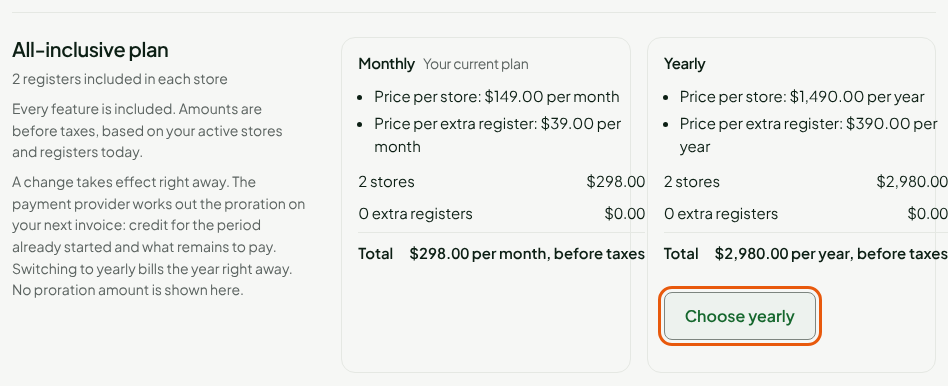
Click Choose monthly or Choose yearly. The window shows the new amount.
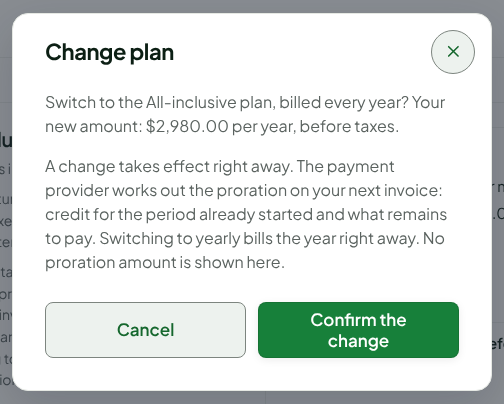
Click Confirm the change. The change takes effect right away.
The payment provider works out the proration on your next invoice: credit for the period already started and what remains to pay. Switching to yearly bills the year right away. The page shows no proration amount.
With a negotiated price, or a price change already announced, the Change tab shows the plans without letting you choose them: write to support.
Saving or changing the card
Click the Payment tab. The Payment method section shows your payment method and the card on file.
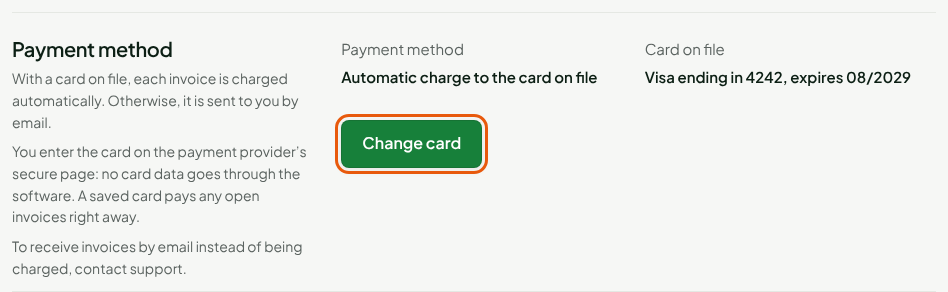
Click Save a card (or Change card). After a few seconds, the payment provider's secure page opens.
Enter the card on that page, then confirm. You come back to the Payment tab, which shows Done. as soon as the card is saved.
A saved card becomes the subscription's card: each invoice is then charged automatically, and any invoices still open are paid right away. No card data goes through Braavu POS.
If your invoices are sent to you by email and a card is already on file, Switch to automatic charge has each invoice charged to that card. To receive invoices by email instead of being charged, write to support.
Changing the invoice recipient or the tax numbers
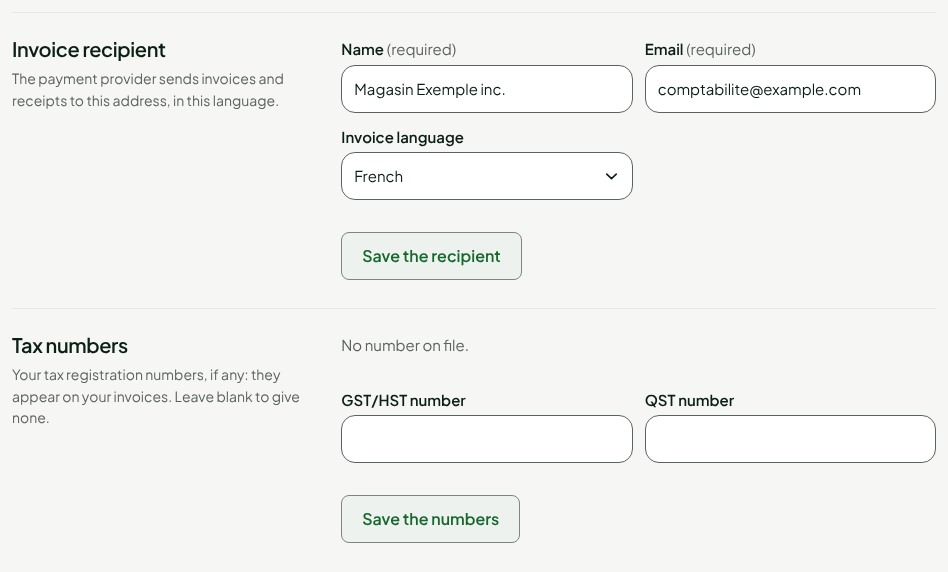
Fill in the Invoice recipient section in the Payment tab: the Name, the Email and the Invoice language.
Click Save the recipient.
Fill in the Tax numbers section with your registration numbers, if any (one field per accepted number, for example GST/HST number and QST number); leave a number blank to remove it.
Click Save the numbers. They appear on your next invoices.
Troubleshooting
"The card page expired or was abandoned. Start again."
The provider's page was closed before the end, or has been open for more than 24 hours. Click Save a card again.
"Card saved, but an open invoice was declined"
The card is on file, but it could not pay an invoice that was still open: that invoice remains due. Pay it with Pay in the Invoices tab, with another card if needed.
"These values changed since you loaded the page"
Someone else, or another tab, changed the recipient or the tax numbers while you were typing. The page was just reloaded: your entries stay, the other fields show the current values. Check, then save again.
"The payment provider did not answer: another attempt will be made shortly."
The payment provider is slow or down: your request is kept and retried on its own. Nothing else stops: the register sells as usual.
"Not subscribed yet: no invoice is sent."
Your business has no subscription yet: nothing is billed. The Invoices tab stays empty until the first invoice.
"The invoices have not been read from the payment provider yet."
The subscription was just created: the list fills in at the next read, usually within the hour.
The page shows "Access denied"
Your role does not have View software billing. An administrator can give it in Team > Roles.